
Easy instruction recording – documentation and training created as you work
The best instruction is the one created during normal work in the system. In SimplyMobile you record it simply by clicking through the process — and then share it with staff as training available right inside the app.
Why system instructions take so long to create
Every rollout and every new feature raises the same question: who will document it for users? The classic route is familiar — someone clicks through the process, takes screenshots with a system tool, pastes them into a document, adds comments, fixes misaligned images and emails the file. The result often goes out of date faster than it reaches its audience.
Instruction recording flips this order. Documentation is created while you run the process, in the same app you work in:
- You start the “Record instruction” feature from the user menu, under your avatar — no installation and no extra software
- You click through the process just as you normally would
- Every click creates a screenshot with the exact spot you clicked marked
- You can move and resize the recorder panel so it never blocks your work
Access is limited by role — only designated people can record, e.g. implementation consultants and administrators. For everyone else the feature stays hidden and nothing is recorded.
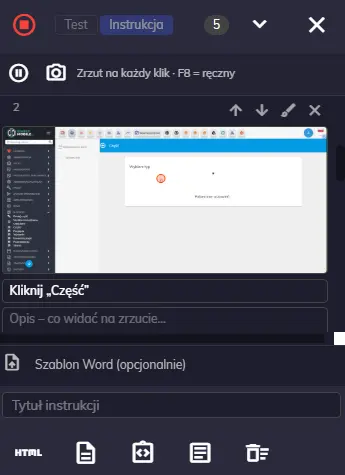
From a recording to a clear instruction – in one window
A recording is only raw material. The recorder gives you the tools to bring it to a publish-ready state, without moving files between programs.
While recording:
- Pause — you stop recording when you need to click through a form or fill in data you do not want in the instruction
- Manual capture (F8 key) — you grab exactly the moment you want to show, including expanded lists and menus
After recording, for each screenshot:
- Step title and description — a short heading and an explanation of what the user sees on the screen
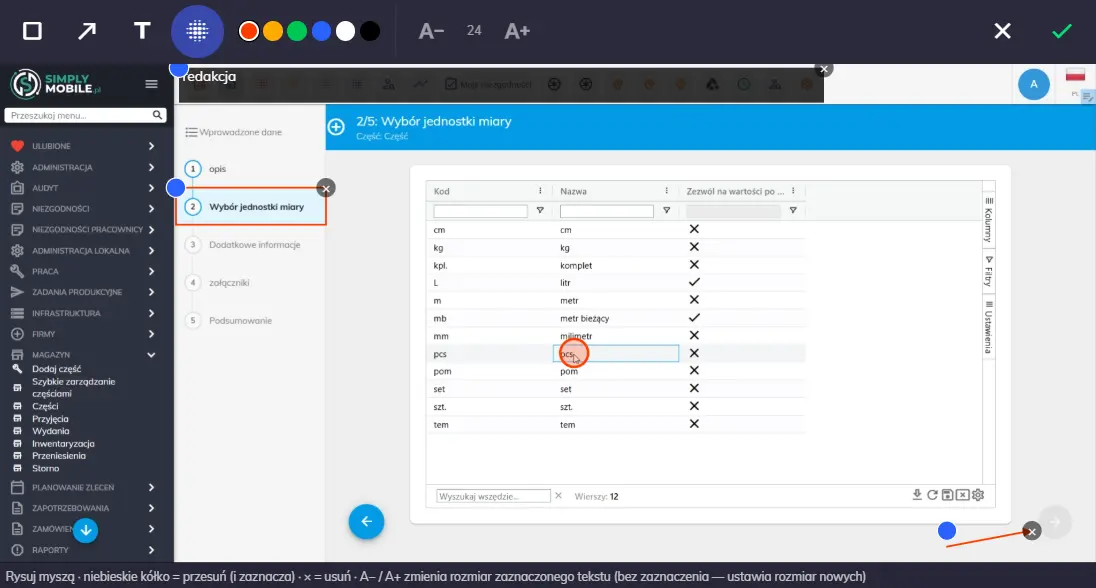
- Area highlighting — rectangle, arrow and text when you want to draw attention to several elements at once
- Blur (redaction) — you cover data that should not appear in the document
- Markup editing — you move and scale markers, change color and text size; the original screenshot stays untouched, so you can revisit your changes any time
You export the finished instruction as a Word document (on your company template, with header and logo) or as an HTML file for publishing and printing.
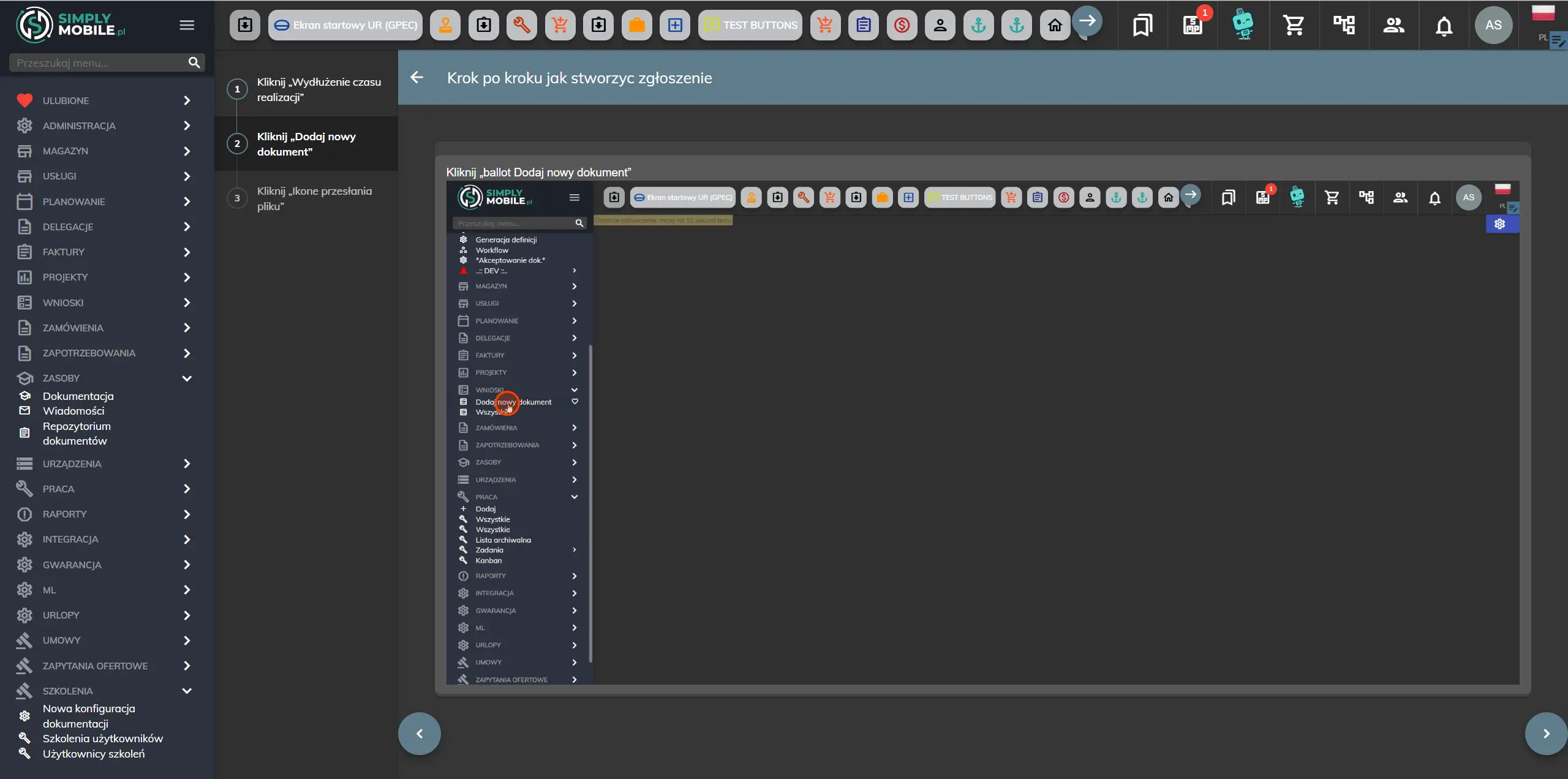
An instruction that becomes in-app training
The most interesting part begins where work with a document usually ends. You export the recording with a single button as training in the Training module — material available to users right inside the system, not a file circulating in inboxes.
How it works:
- Every recorded screenshot becomes a separate lesson, so an employee goes through the process step by step, in the same order it was recorded
- Before creating the training you fill in a name, description, category and duration
- The training opens straight away for further setup — you assign it to roles or specific people
- The material stays in the system and is available exactly when an employee actually needs it
This genuinely changes onboarding: a new maintenance employee does not hunt for an “instruction_v3_final.docx” file, but sees assigned training inside the very app they are learning. The material also complements the knowledge base and procedures described within the CMMS.
Who benefits most
- Implementation consultants — documentation is created during the rollout, not after it
- Administrators and key users — you describe a new feature once and share it with all relevant roles
- Maintenance managers — short trainings like “how to report a breakdown”, “how to close a work order”, “how to issue a part from the warehouse” instead of hours-long meetings
- New employees — they learn from screenshots of the real system, not from generic descriptions
Instructions recorded this way are also easy to maintain: when a screen changes, you re-record the process in minutes and publish a new version of the training. That matters, because an outdated instruction costs more than none — it causes data errors that later distort your CMMS metrics.
The feature scope and permissions are agreed during implementation — enabling the recorder in your environment requires configuration on our side, so it is best discussed with your project lead.
Summary
Instruction recording shortens the path from “this needs documenting” to “the instruction is available in the system”. You record the process by clicking, describe and highlight what matters, and then publish — as a Word document or as in-app training assigned to the right people.
Want to see how it works on your processes? Book a free demo — we will walk through the full path: from recording, through annotations, to ready-made training for users.
See SimplyMobile in action
Book a free, no-obligation demo — we'll show the system on your own processes.